
Recipient Filtering: Send Your Message to the People Who Need to Hear it
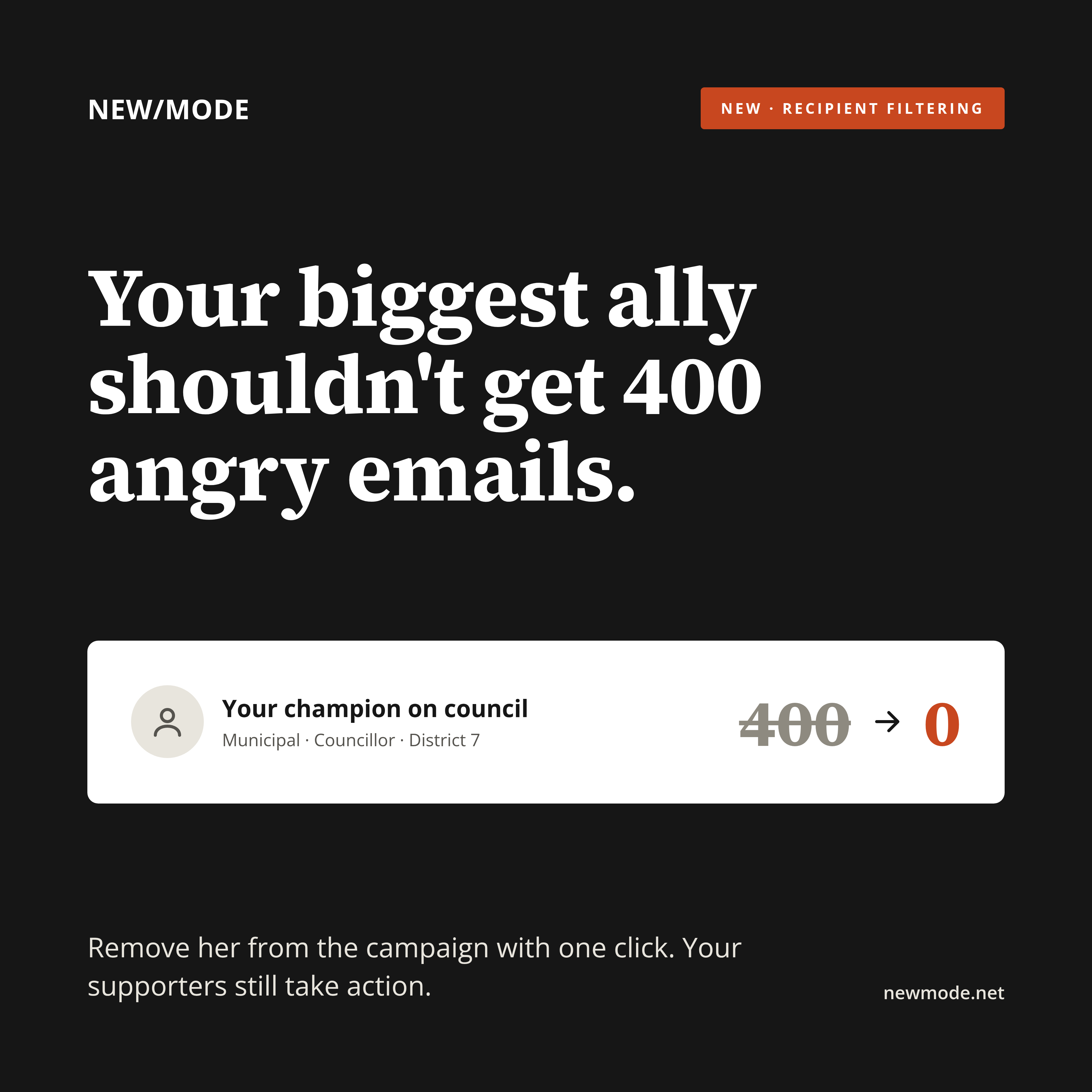
Your strongest ally doesn't need 400 emails asking them to do what they already did.
New/Mode's new Recipient Filtering is live to address and other needs of modern campaigners. Pick any rep, and they won't get a single message from your campaign. You can also block or allow recipients by party, position, level of government, or jurisdiction. It works on Email, Social, and Call campaigns.
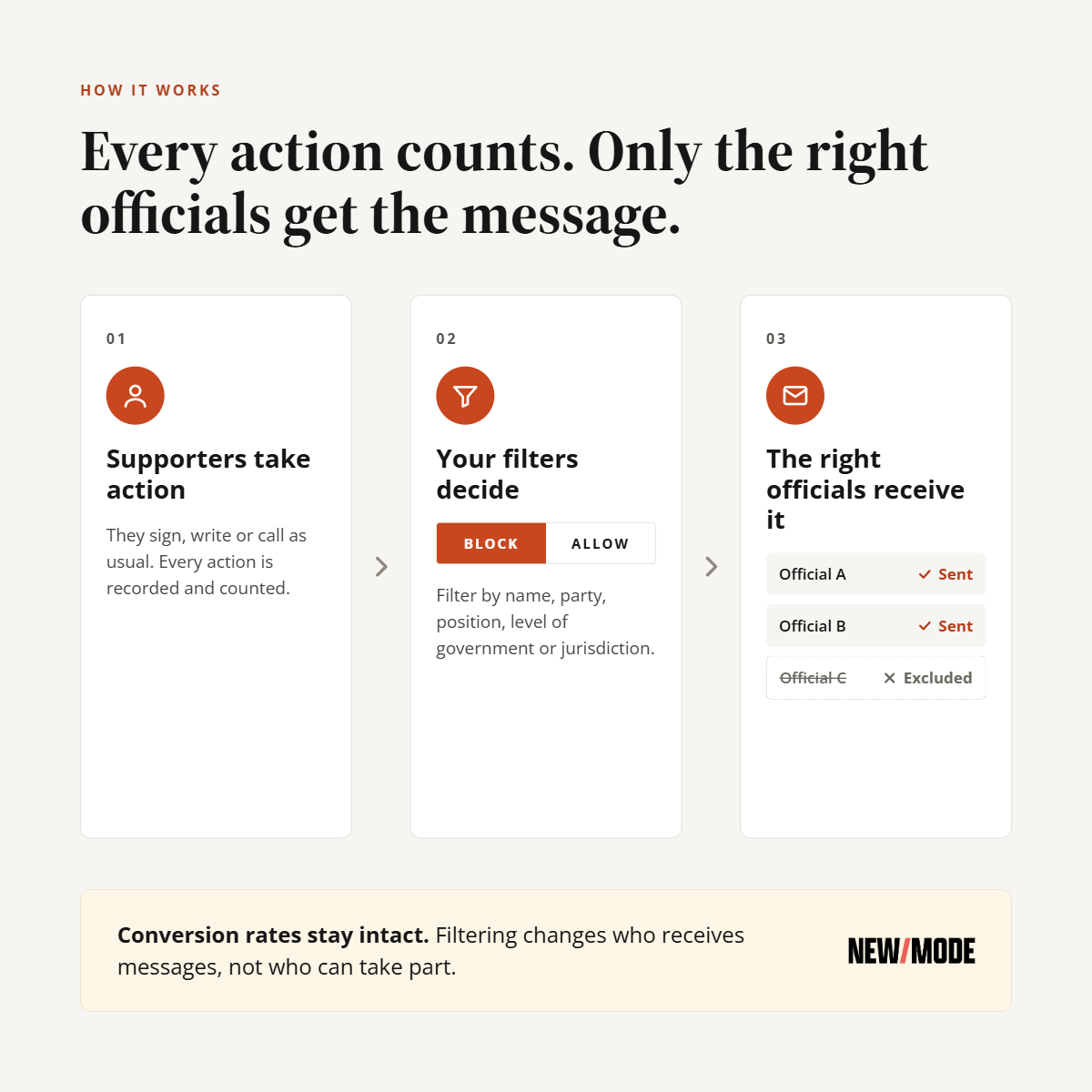
If a supporter ends up with no one to contact, their message goes to your fallback target instead, so you don't waste any action.
.png?width=1200&height=1200&name=5%20%C2%B7%20Use%20cases@1x%20(1).png)
How to use Recipient Filtering
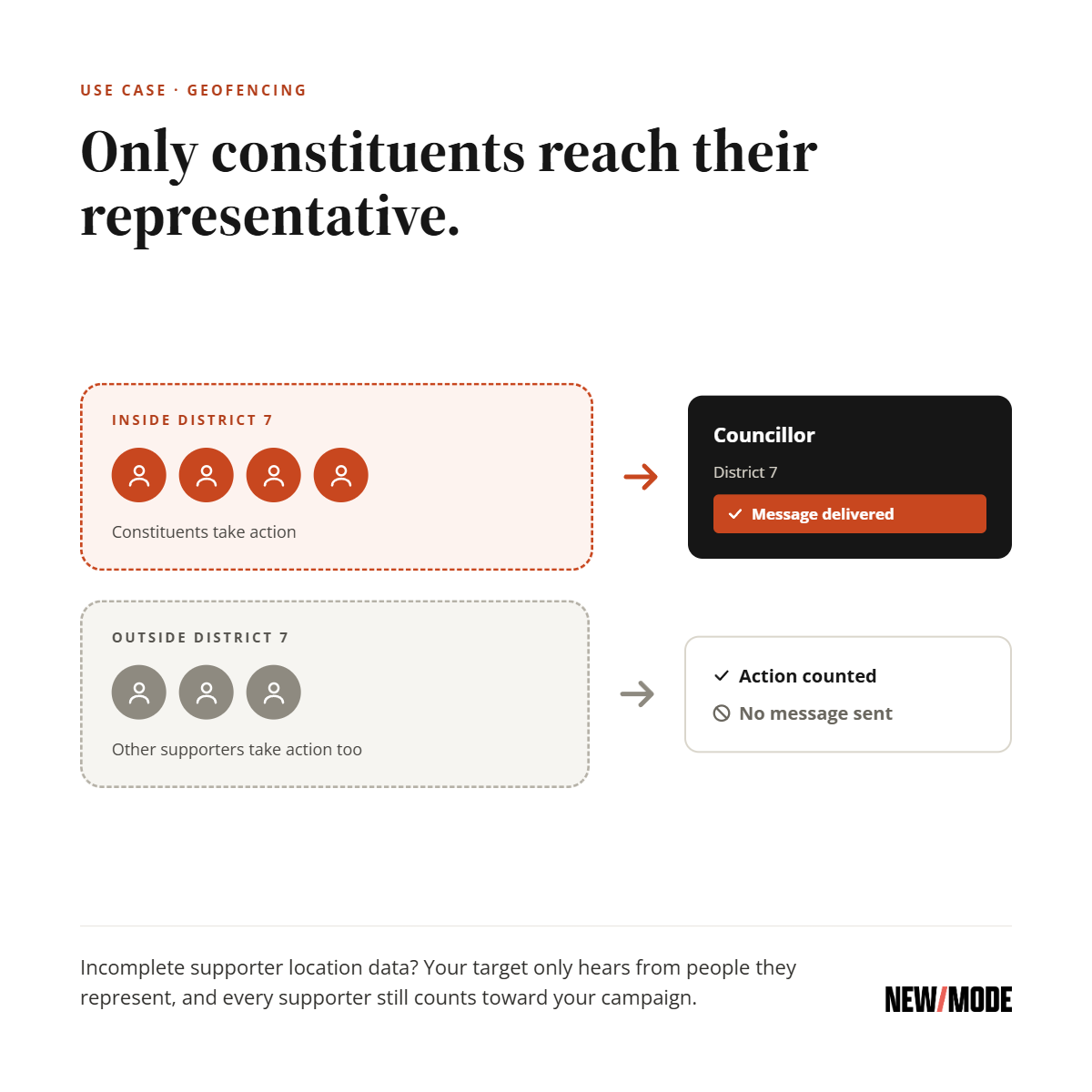
Geofencing: Make sure only a targeted official or set of officials receive your advocacy messages and filter out others. Supporters outside the official's district can still take action, but their messages aren't delivered to that official. If you have incomplete supporter location or targeting abilities, this ensures only your targeted officials receive your message.
Supporters from outside the district can still take action on your campaign. Their participation is recorded and counted, but no message is sent to that official. You keep your full supporter base, and your conversion rates stay intact, while every message the official receives comes from a real constituent.
Refine your targeting: Maybe your campaign only targets Ministers, or you only want to target a particular State, Province, or Country.
Remove your friends: Is one of the Parties a friend and not worthy of your supporters' angry emails? You can use Conditional Messaging to send them different messages, but this feature lets you remove them from the campaign with a click. Or you can “Allow” only the Party reps who are being helpful and send them a positive message thanking them.
Focus on the swing votes: Don't spend your supporters' energy on officials whose minds are already made up. "Allow" only the undecided legislators so every message goes where it can actually change a vote.
Target the committee: When a bill is in committee, committee members matter most. Allow only those members by name so your campaign hits the people who decide whether the bill moves forward.
Take officials off the list as they commit: Running a pledge campaign? As each official signs on or publicly commits, block them. Your supporters stop pressuring people who have already said yes, and the pressure concentrates on the holdouts.
Target the government, not the opposition: Opposition members can't pass legislation. Allow only members of the governing party, or only cabinet ministers, to focus pressure on the decision-makers.
Protect a sensitive negotiation: Sometimes your team is working behind the scenes with an official, and a flood of emails would hurt more than help. Block them while talks are underway, and unblock them if things stall.
What Recipient Filtering does
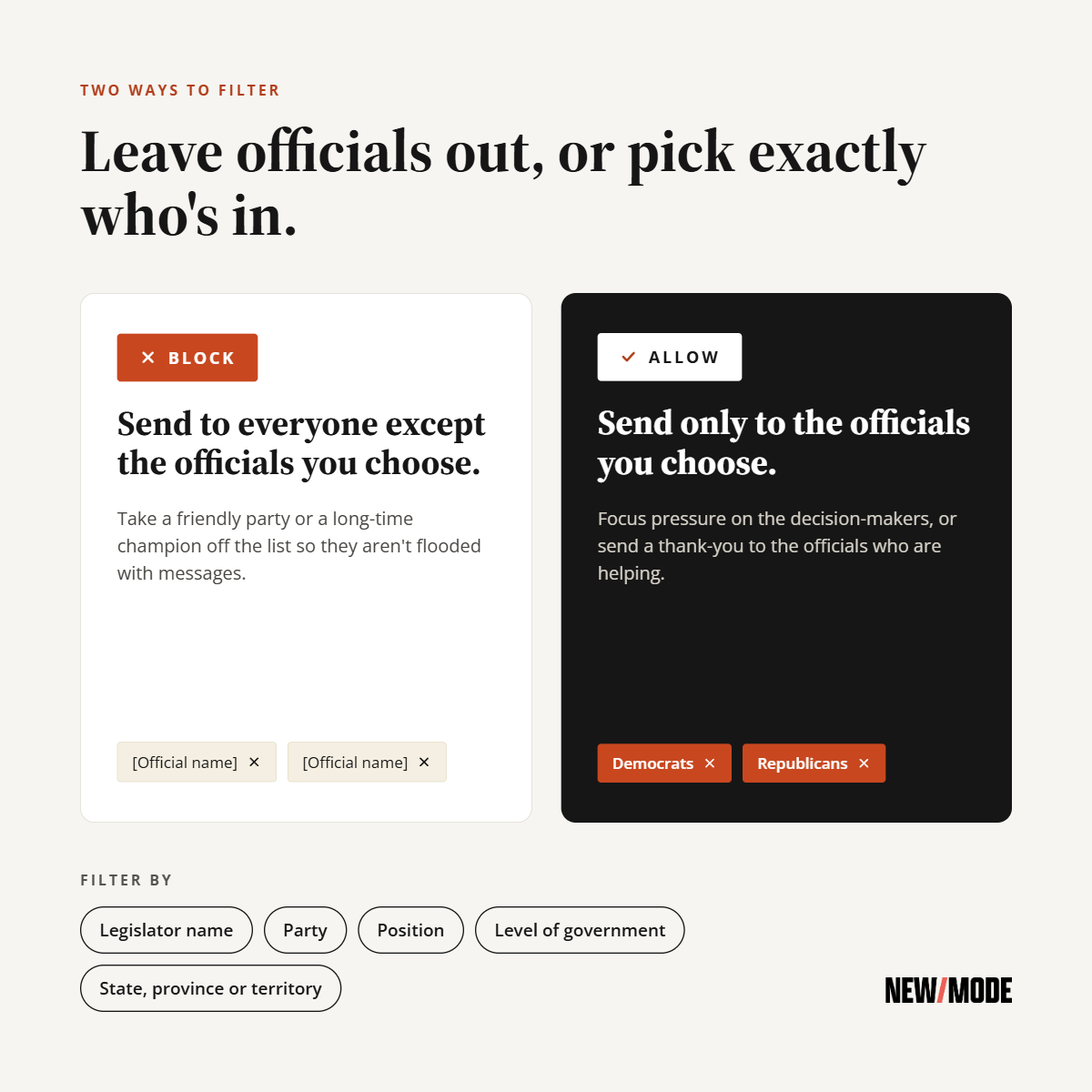
Recipient Filtering lets you filter exactly which recipients your campaign reaches. Block the ones you want to skip, or allow only the ones you want to hit. Your supporters still look up their reps as usual, and your filters do the rest.
Set filters using any of these:
- Recipient name
- Party
- Position
- Level of government
- Jurisdiction (state, province or territory)
It works on all your Email, Social and Call campaigns. So whether supporters are sending emails, posting at their reps, or picking up the phone, the pressure goes where you point it.
And no action gets wasted. If your filters leave a supporter with no recipients, their message goes to your campaign's fallback target instead, like a committee chair or party leader.
When to use it
- Your allies are already on board. Skip the reps who've publicly committed and put the pressure on the ones still on the fence.
- Someone's recused or out. A member stepped down, is on leave, or isn't voting on this one. Take them off the list without rebuilding the campaign.
- You're protecting a relationship. Your lobbyist has a meeting with a minister next week. Keep the inbox flood away from that office while the conversation happens.
- You're running a targeted push. Focus a final wave on the five swing votes on a committee, not the whole legislature.
- Someone asked to be removed. If an office has a legitimate reason, you can respect it and keep the campaign running for everyone else.
The result is the same every time: fewer wasted emails, and more pressure exactly where it counts.
How to set it up
- In your campaign's Recipients step, add the datasets you want to target.
- In the Recipient filtering box, click + Add filter.
- Choose Block or Allow.
- Under Filter type, pick what to filter by, then search and select one or more values.
- Want another rule? Click + Add filter again.
- Click Apply filters, then save your campaign.
Stacking filters? Recipients have to match every Allow filter and none of your Block filters. Inside a single filter, matching any one value counts. Filters only narrow your list; they never add anyone to it, and they apply to every variant of your message.
Your recipients list shows active filters at a glance, like "Allowing 2 Parties" or "Blocking 1 Recipient," plus a running count of possible recipients.
Full walkthrough: Filtering recipients with New/Mode
Aim every action
Your supporters show up because they want to make a difference. Recipient Filtering makes sure their voice lands on the desks that still need convincing.
For a limited time, Recipient Filtering is available to all Growing Organization customers.
Already on New/Mode? Log in and try it on your next campaign.
New here or want to upgrade to Movement Builder? Book a demo, and we'll show you how to make your voice impossible to ignore.

Written by
Steve Anderson is the co-founder and chief strategist for New/Mode — a values-based platform that provides targeted online engagement tools. https://NewMode.net
More on V2 from New/Mode Blog

More on V2 from New/Mode Blog
More on V2 from New/Mode Blog